|
1
|
|
|
2
|
|
|
3
|
- To get started:
- Select an existing record that has not been signed or create a new
record.
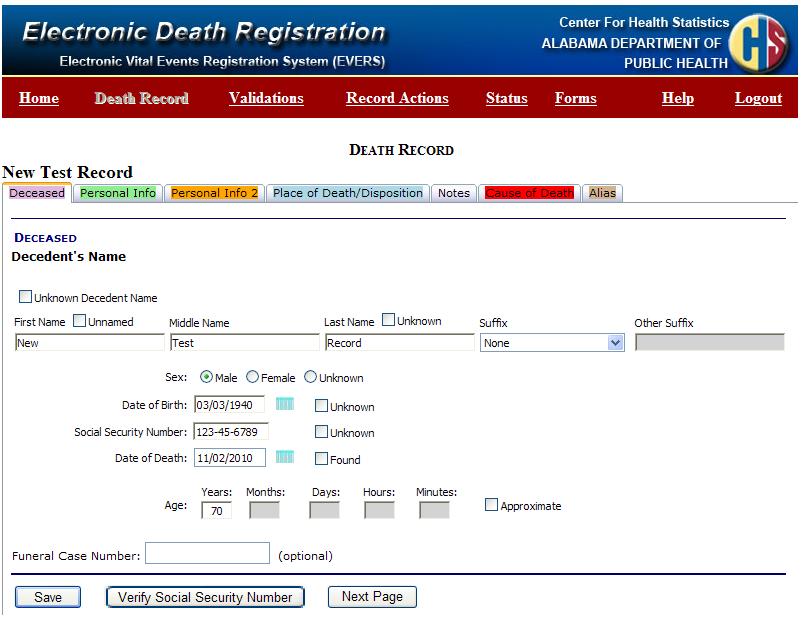
- On the Deceased Tab, as displayed on the right, review the information
to ensure it is correct.
- Before you can verify a record, Social Security requires the following
fields:
- First Name
- Last Name
- Sex
- Date of Birth
- SSN
|
|
4
|
- Next:
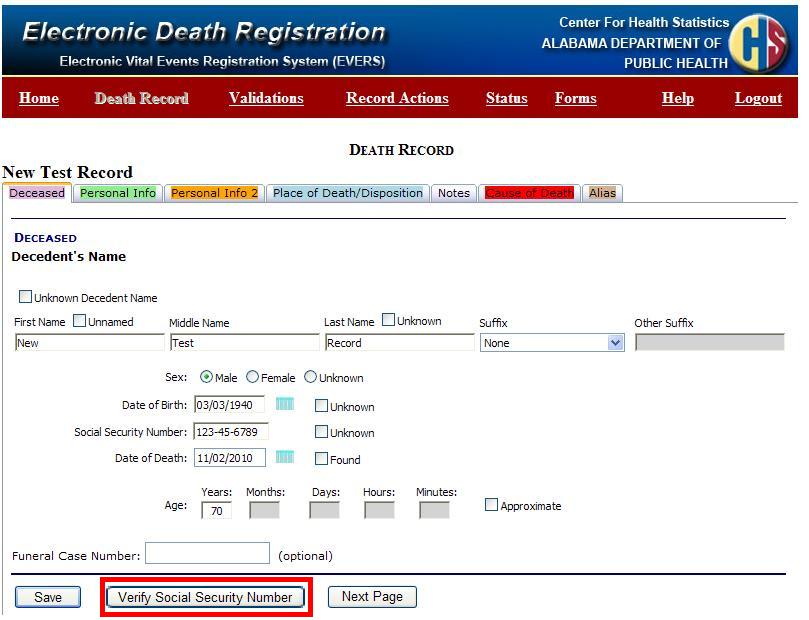
- Click “Verify Social Security Number” at the bottom of the Deceased Tab
page. .
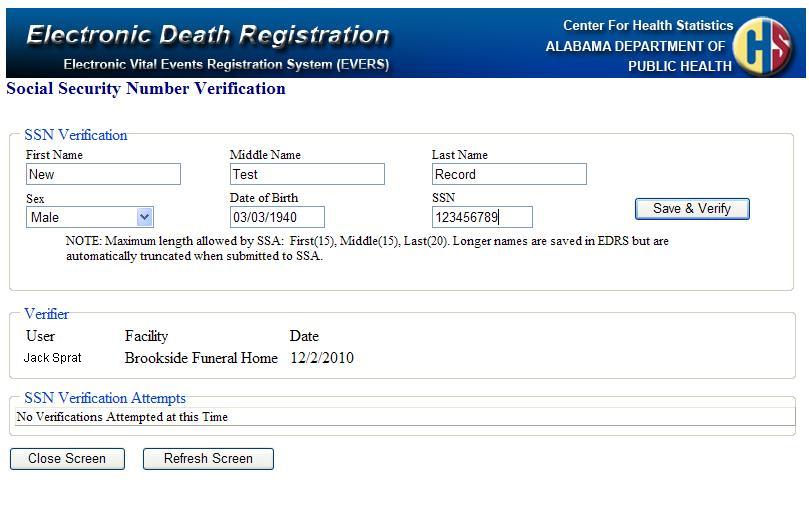
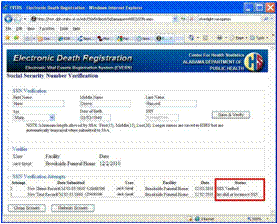
- The Social Security Verification Page will open displaying the required
SSA fields.
|
|
5
|
- Next:
- Notice the core information from the Deceased Tab is displayed on the
Social Security Number Verification Page.
- You may modify information in these fields on the Verification page as
well as on the Deceased Tab.
|
|
6
|
- Next:
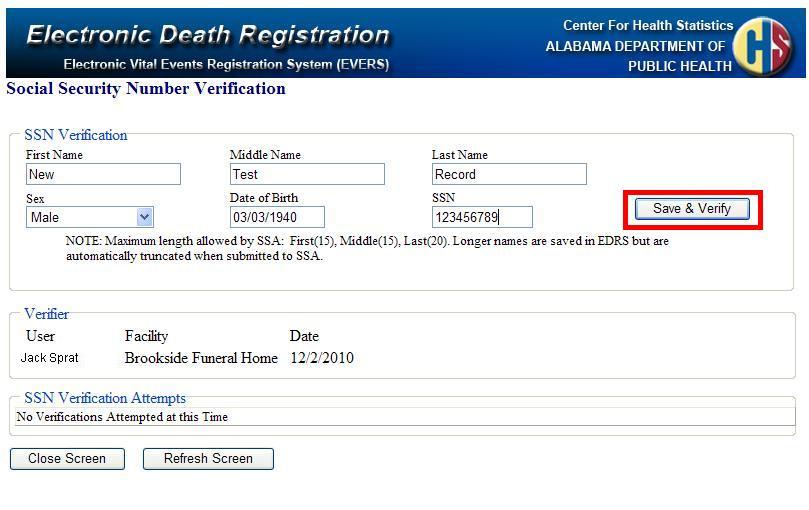
- Once you ensure the information in the six fields are accurate, remember only the Middle Name is
optional the remaining five fields are required, you are ready to Verify
the record.
- To verify the record with the Social Security Administration, click
“Save & Verify”.
- Any changes made to the six field displayed on this screen will save and
the information will be transmitted directly to the Social Security
Administration.
|
|
7
|
- Next:
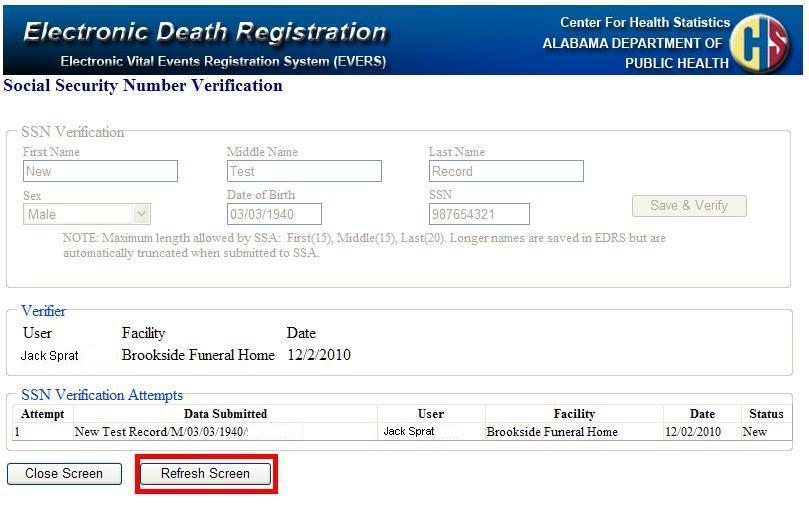
- Notice the verification attempt will be displayed in the SSN
Verification Attempts grid with “New” usually displaying in the Status
column.
- To retrieve the response from Social Security, click “Refresh Screen”.
- Depending on the network traffic you may receive an immediate response
with the word “Pending” or you may get a response indicating the
verification status of the Social Security Number of the deceased.
|
|
8
|
- Next:
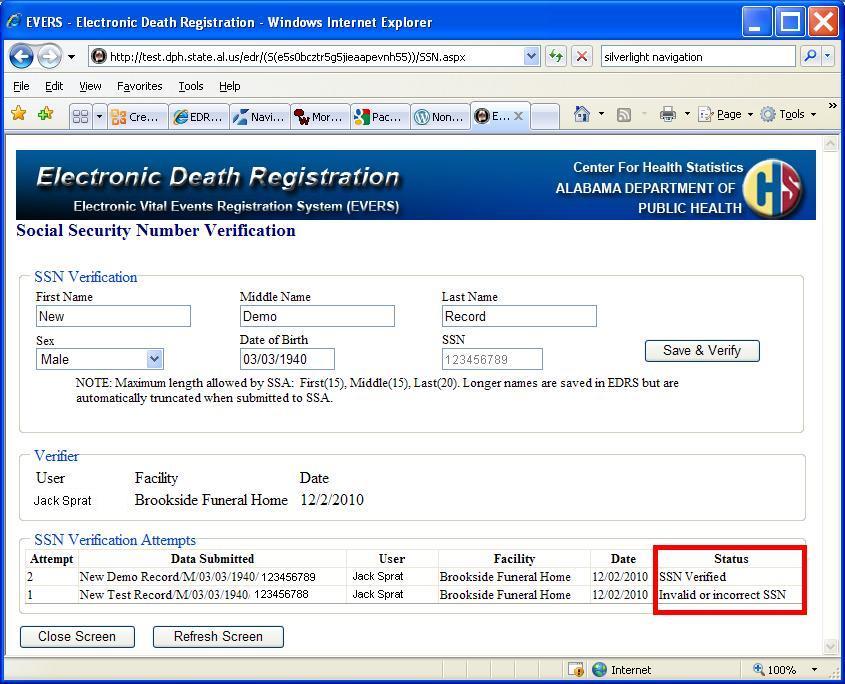
- In the case displayed on the right, notice the first attempt to verify
the Social Security Number failed.
- If the attempt fails, correct any keying errors you may have made in EDR
and re-verify.
- If the information was keyed correctly, ask the informant to verify the
information is correct. If the
informant provides corrected information for the deceased, enter that
information in EDR and attempt to verify the SSN again.
|
|
9
|
- Next:
- In the example to the right, since the first attempt to verify the
Social Security Number failed, the Funeral Home corrected the entry and
re-verified the record. On the
second try the Social Security Number verified.
- Once the record has “SSN Verified” in the status, SSN will be locked or
disabled and you cannot make changes to this field The remaining five fields can be
modified if needed. If
modification occurs you must re-verify the record through SSA before the
record can be signed.
- You have up to five attempts to verify a record. If after five try the record does not
verify, you CAN still file the record electronically through the EDR
system.
|
|
10
|
- There are five Required Fields: First Name, Last Name, Sex, Date of
Birth, SSN
- You have up to five attempts to verify a record through SSA.
- If a record does not verify, you CAN SIGN AND SUBMIT the record through
the Electronic Death Reporting System.
- If the Social Security Number verifies, the SSN field will be
locked. The remaining five fields
can be modified until the record is signed.
- If one or more of the six fields are modified (this includes the
optional middle name), the record must be re-verified prior to signing
the record.
- Duplicate entries cannot be re-verified.
|
|
11
|
- Monday – Friday : 4:00 a.m. –
12:00 Midnight
- Saturday: 4:00 a.m. –
10:00 p.m.
- Sunday: 7:00 a.m. – 10:30
p.m.
- Federal Holidays: 7:00 a.m. –
10:30 p.m.
|
|
12
|
|
|
13
|
|
|
14
|
- For additional questions or assistance contact the following:
- Jill Brewer:
- phone (334)206-2734
- e-Mail: jill.brewer@adph.state.al.us
- LaTarsha Shine:
- phone (334)206-2754
- e-Mail: latarsha.shine@adph.state.al.us
|

 Notes
Notes